Financial Tools for Small Businesses
Though running a business is tough, there are solutions out there designed to help owners reduce their to-do list and save time. Discover bill.com...
1 min read
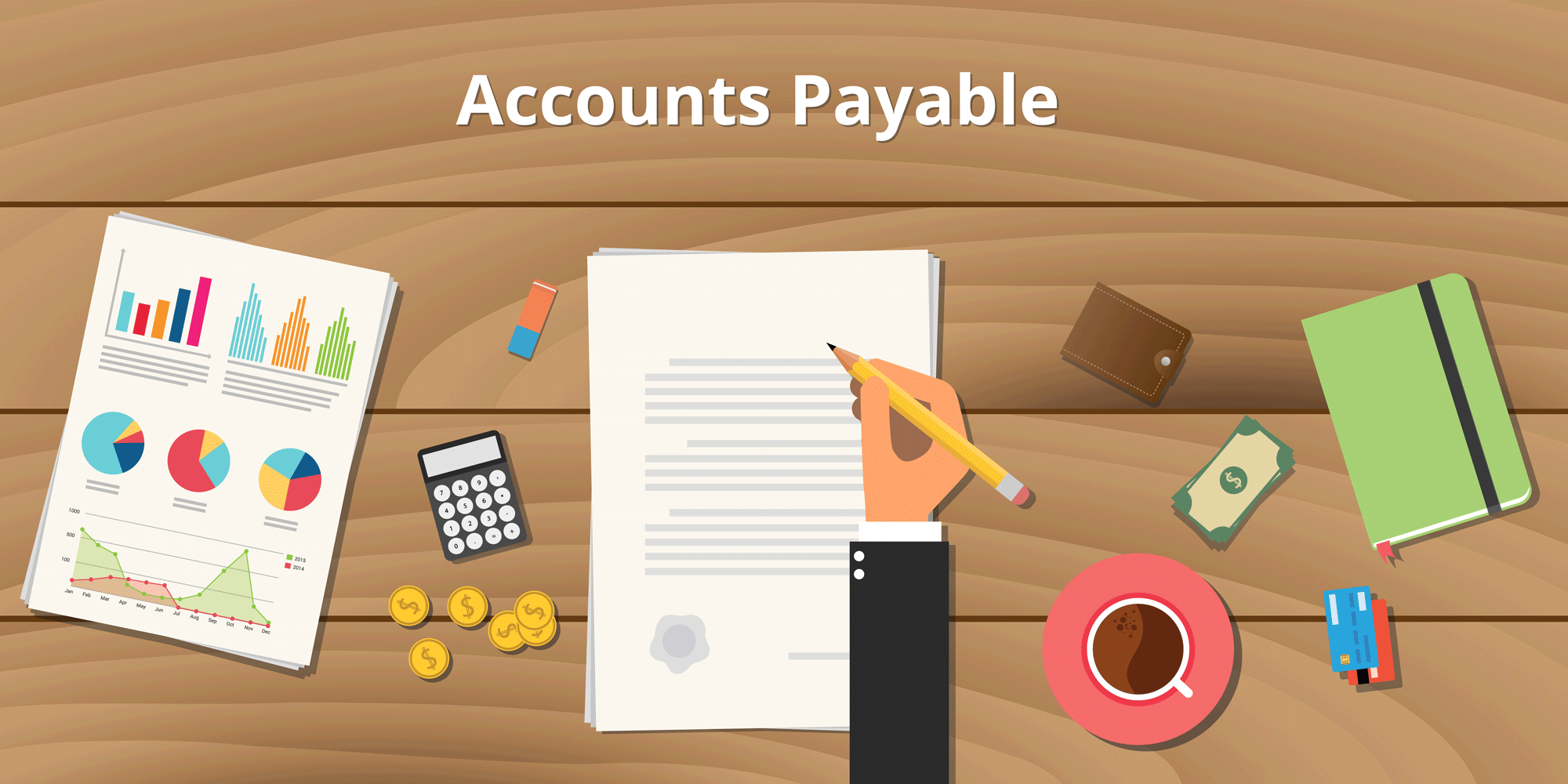
As a business, it is important to keep up with the amount of money going out. The AP process allows you to manage the flow of cash to vendors. AP helps keep bills organized and keeps you informed about who you need to pay and what you have already paid. By having an AP process in place, you can identify if you have underpaid or overpaid a vendor. Most importantly, the AP process allows you to manage and identify fraud.
It is important to review invoices or receipts in the inbox. When processing AP in Bill.com, the first step is adding an invoice from an email or by uploading invoices directly to in Bill.com. Bill.com will automatically scan and pull information from an invoice. You then review the information pulled from the invoice for accuracy. You can have an approver assigned for vendors, or you can add the approver to the invoice. Once everything from the invoice is added, click create bill in the top right.
At that point, you would wait until the invoice is approved in Bill.com, go into pay, select review, and pay. If the invoice is paid outside of Bill.com, click to mark as paid. You may also have the option to print a check out of QBO (click the sync button). Once you have completed paying the invoices, select the sync button in the top right corner.
Go into clients in QBO and update the bank register. The invoices paid by Bill.com will show in Bill.com Money out clearing account. Invoices that were marked as paid will show in the bank register.
Print the reports to Adobe with the bank register, Bill.com account, AP summary, AR summary, and Check detail. If there are receipts or checks to print, include those in the reports. Go through your checklist to make sure you have printed off all the reports needed.
For additional information on how to make Bill.com work for you and your AP process, contact Baldwin CPAs.
This article was written by Maxie Brown. Maxie is an Accounts Payable Specialist with Baldwin CPAs. For more information on the support Baldwin CPAs can provide you, contact maxie.brown@baldwincpas.com.


Though running a business is tough, there are solutions out there designed to help owners reduce their to-do list and save time. Discover bill.com...
Simplify your business finances with Bill.com and Dext. Learn how these powerful tools automate expense tracking, manage vendor payments, integrate...

Unlock efficiency and ease when you deploy BILL for your accounts payable and receivable. This system makes running AP/AR simple with built-in...